Chunchunmaru Softworks · Open Beta

YAMADA

A summonable desktop companion for Windows — AI chat, PDF study review, focus timers, agenda planning, and ten visual themes in one headless overlay.

Built on Electron and routed through Eden AI's multi-model gateway, Yamada lives invisibly in your system tray. One shortcut raises a calm, glass-edged surface over your desktop. Dismiss it and it vanishes without a trace.

Open Beta Electron · Windows Eden AI Gateway 10 Themes ⌨ Ctrl + Space
YAMADA · overlay
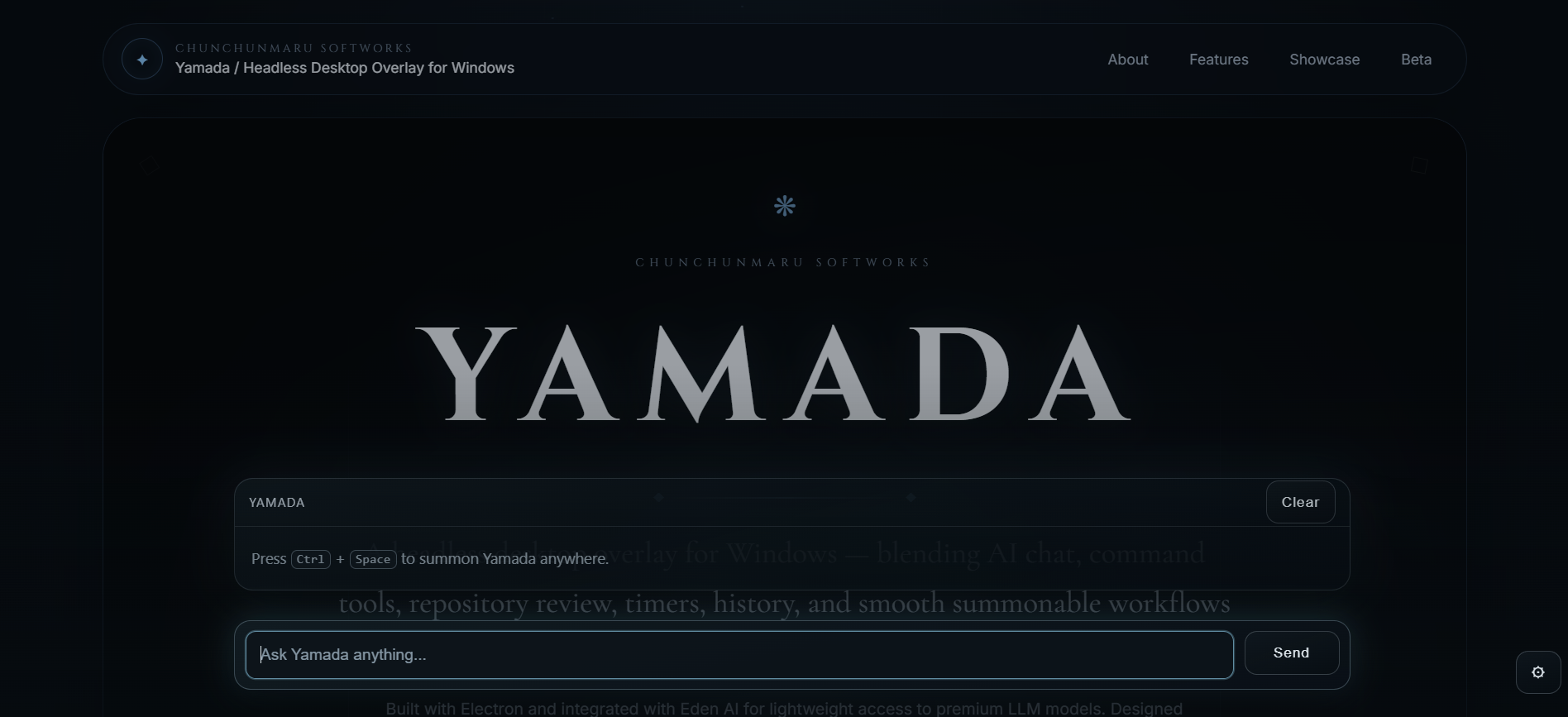
Press Ctrl + Space to summon Yamada over any application.
Yamada · ready What do you need?
/timer /review /ask
Ask Yamada anything…
Send
01 —— What Yamada Is
01

Overview

More than a chatbot. A desktop layer with real identity.

Yamada is designed as a persistent but invisible desktop presence — always available, visually calm, and fast enough to feel instinctive. Instead of scattering AI, timers, file review, and planning across separate apps, it unifies them behind a single command surface that appears on demand and disappears without a trace.

01 Headless overlay — no taskbar clutter, no permanent window, just the shortcut.
02 AI, PDF review, timers, agenda, and history unified under one interface.
03 Summoned instantly, used quickly, dismissed cleanly.
04 Built independently under Chunchunmaru Softworks with a clear design direction.
02

How It Works

Summon. Act. Disappear.

Yamada sits silently in your system tray. One keyboard shortcut brings up the glass overlay. Slash commands unlock specialised modes. Dismiss it and your desktop is clean again.

01
Summon Ctrl + Space from any application — the overlay appears instantly over your current screen.
02
Command Chat with the AI, run /timer for focus sessions, open /review for PDF study, or check your agenda.
03
Dismiss Close the overlay and return to work. Conversation history and widget state persist for the next session.
02 —— Features
Instant Overlay

Summon anywhere

Ctrl + Space reveals Yamada over your current screen with a cinematic entrance. The blurred glass surface stays non-intrusive and dismisses just as cleanly — no window management required.

Works from any application, at any time, without switching focus to a launcher or taskbar entry.
System Tray Global Hotkey Glass UI
Multi-Model AI

Powered by Eden AI

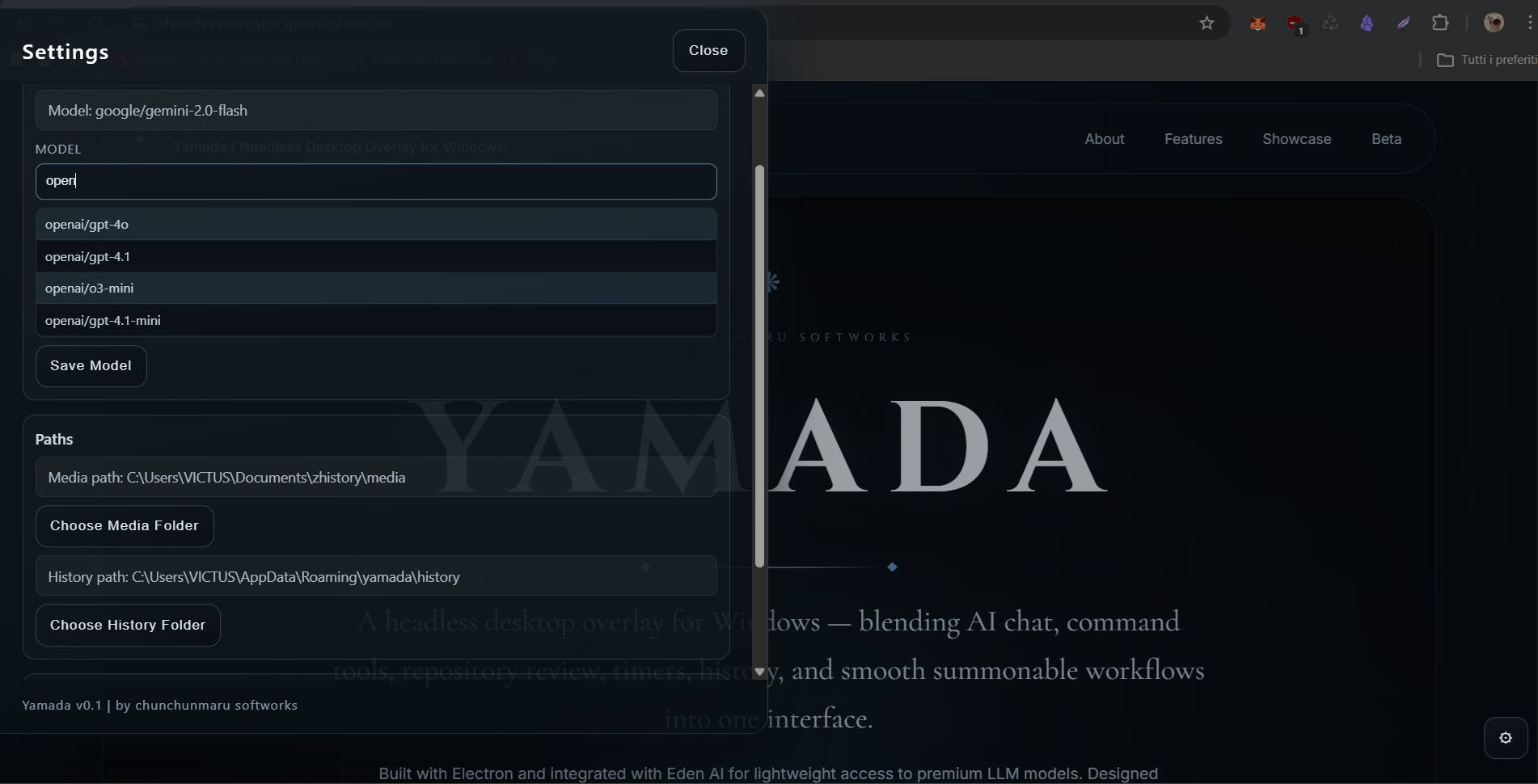
Switch between gemini-2.0-flash, gpt-4.1, o3-mini, and more from the settings drawer — no config files, no restarts.

PDF Review

/review

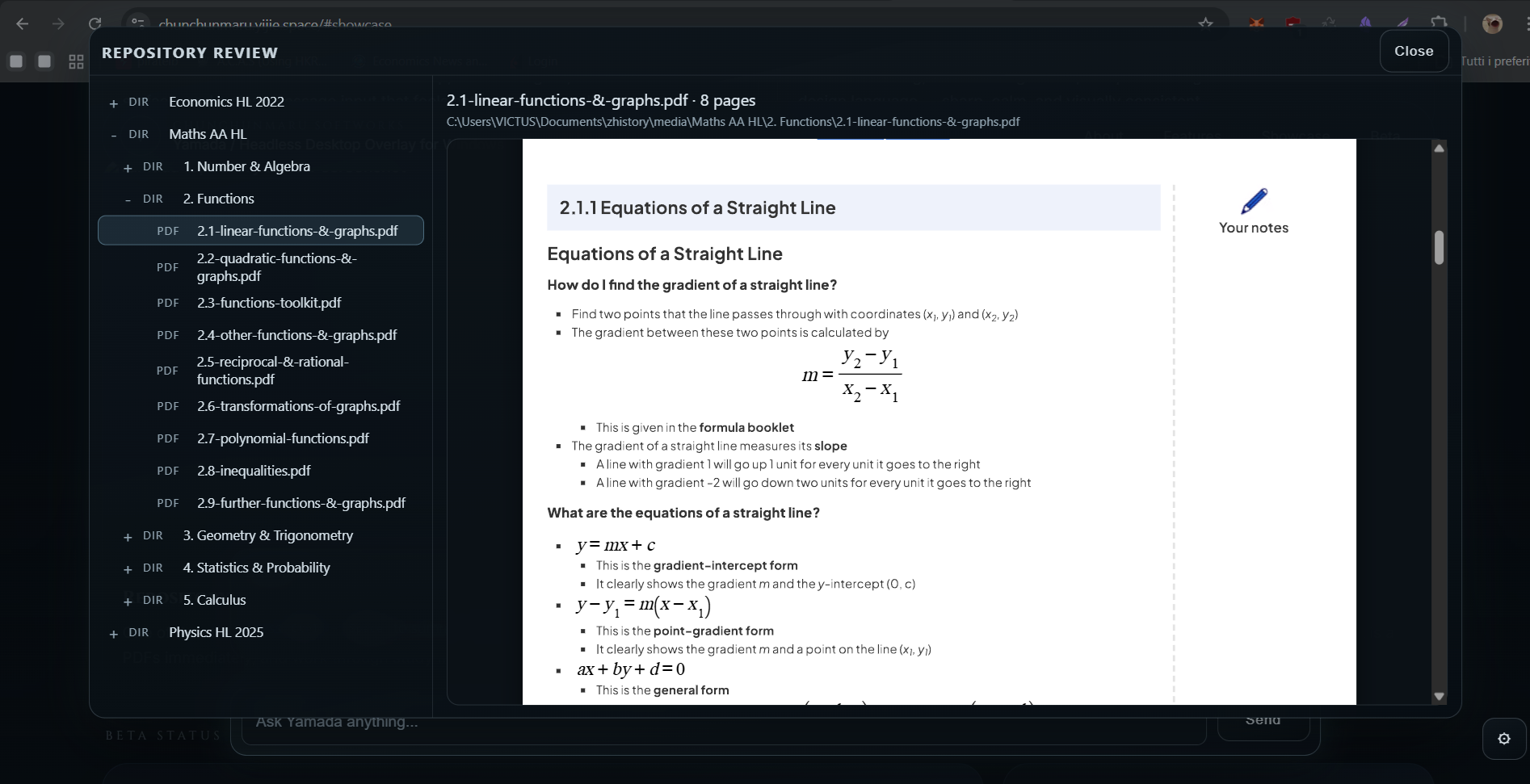
A two-panel study browser: collapsible folder tree left, inline PDF reader right. Navigate course materials without opening a browser.

Focus Tools

/timer

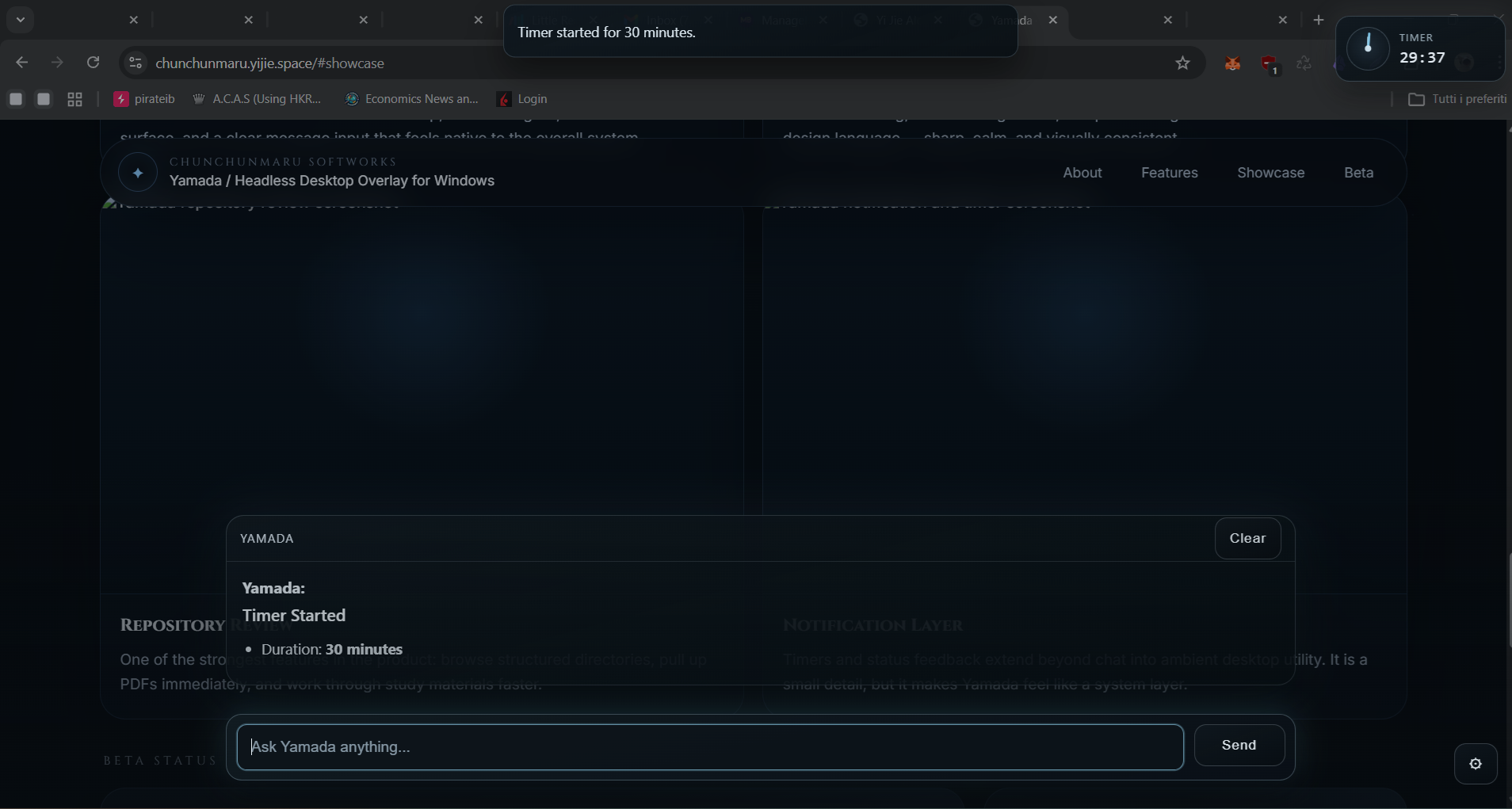
Start a countdown session with natural language. The timer widget persists even after the overlay is dismissed, keeping your session anchor visible.

History

Persistent sessions

Every conversation is saved locally and browsable from the history panel. Return to any thread, continue where you left off, no cloud sync required.

Agenda

Calendar & widgets

Pin a clock, calendar, or timer widget to a persistent desktop rail. Manage a local agenda with AI-assisted event creation inside the overlay.

Execution

Guarded action layer

When Yamada recognises structured intent — starting a timer, toggling a widget, managing a calendar event — it returns a validated action code that the runtime executes safely. This is the foundation for a richer desktop agent layer: AI that acts, not just responds.

Themes

Ten handcrafted visual themes

Aurora, Graphite, Ember, Orchid, Verdant, Dusk, Rose, Caramel, Aqua, and Cobalt — each with a distinct accent colour, hue shift, and glassmorphism character. Propagates instantly across the entire interface without a restart.

03 —— Product Showcase
Yamada overlay chat interface
01 / 04

Overlay Chat

The core surface: a dark glass panel over your desktop with a full AI chat input, conversation history, and cinematic motion on summon and dismiss.

Yamada settings drawer with model selection
02 / 04

Settings & Model Selection

Swap AI models — Gemini 2.0 Flash, GPT-4.1, o3-mini — from a searchable dropdown. Configure paths and switch themes inside the overlay.

Yamada PDF study review mode
03 / 04

PDF Study Review

The /review command opens a two-panel study browser: a collapsible folder tree on the left and an inline PDF reader on the right.

Yamada timer command with AI action confirmation
04 / 04

Timer & AI Action Confirmation

Prompt "start a 30-minute session" and Yamada confirms with a structured action card, fires the timer widget, and keeps you on track — no manual setup required.

04 —— Download

Download
Yamada

A working, feature-complete product — not a prototype. Install it, paste your Eden AI key in Settings, and summon it with Ctrl + Space.

Platform Windows 10 or 11 · 64-bit · self-contained installer
API Key Eden AI key required — free tier at edenai.run. Paste in Settings on first launch.
First Run Install → launch → open Settings → paste key → press Ctrl + Space
Download .exe — Beta 1.0

Windows 10 / 11 · x64 · 87 MB
Portable · No installation required · Free during beta

05 —— Developer
YI JIE

Chunchunmaru Softworks · Indie Developer

Yi Jie Alessio

Building desktop-native tools, memory-aware AI companions, and ambient workflow systems independently. Yamada is an early but serious step toward intelligent desktop agents that feel embedded in how you work, rather than bolted on top of it.

YJ

Get started

One shortcut away from a calmer desktop.

Yamada already shows what a quieter, more useful desktop layer can feel like — instant summon, practical commands, multi-model AI, local PDF study tools, and design polish with a real identity.